- Published on
Office Potluck Sign-Up Sheet: Free Printable & Setup Checklist
A useful office potluck sign-up sheet records who is bringing each dish or supply, when it will arrive, and who will bring the serving utensils. Keep space and reheating arrangements on a separate host checklist. This keeps the public sign-up sheet simple while giving the organizer the details needed to set up.
Open the free potluck sign-up sheet and host planner →
Our planner works in English without an account. It supports US Letter or A4 landscape printing, PDF saving through the browser print dialog, CSV export, and one saved draft in your browser. It is not a shared online registration system: one organizer collects contributions and updates the plan.
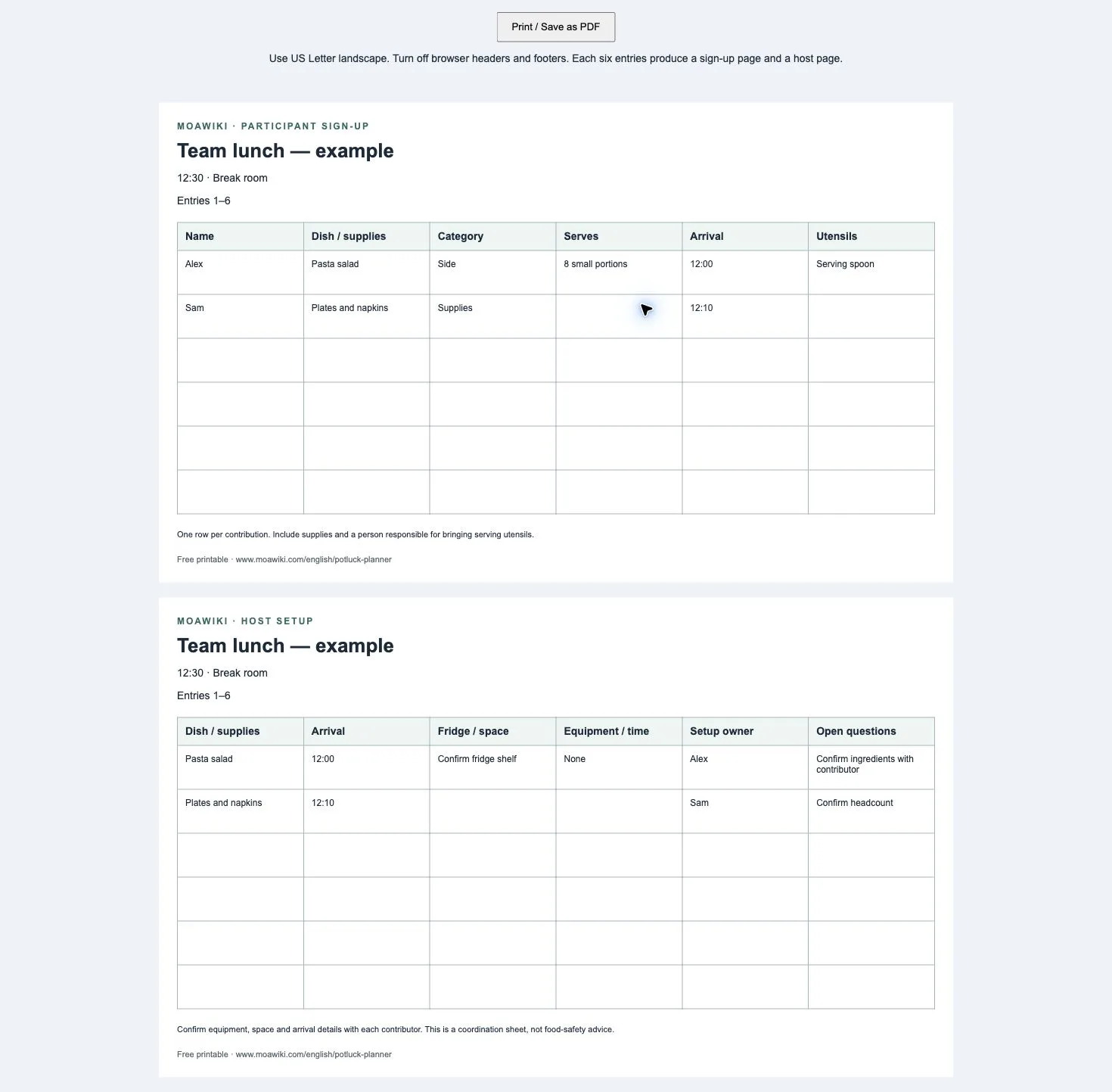
Actual planner preview using fictional example entries. Your printout uses the paper size you choose.
Start with the event, then ask for contributions
Write the event date, location and serving time before circulating the sheet. Add a separate arrival time for each contribution when setup needs to happen before lunch. A dish arriving at 12:30 is different from a dish ready to serve at 12:30.
Use one row per contribution, including non-food items. Plates, napkins and serving utensils need an owner just as a main dish does. Category names such as Main, Side, Dessert, Drinks and Supplies are organizing labels, not a required menu.
Copy this sign-up sheet
| Name | Dish or supplies | Category | Serves (estimate) | Arrival | Serving utensils |
|---|---|---|---|---|---|
The estimate belongs to the contributor. Do not add “serves 8” for a side dish to “serves 8” for a dessert and conclude that you have 16 complete meals. Ask what the quantity means and compare contributions within their categories.
The editable planner starts with six blank entries and supports up to twelve. Leave the fields empty for a paper sign-up sheet, or enter confirmed contributions before printing.
Worked example: a team lunch
This is a fictional coordination example, not a tested menu or a recommended quantity for a particular group.
| Person | Contribution | Arrival | What still needs confirming |
|---|---|---|---|
| Alex | Pasta salad, estimated eight small portions | 12:00 | Fridge space and a serving spoon |
| Sam | Plates and napkins | 12:10 | Final headcount and table setup |
| Jordan | A warm dish | 12:00 | Equipment, container and reheating instructions |
If two people need the same microwave at the same time, resolve that before the event. Agree on equipment and a sequence with the contributors; a sign-up sheet by itself cannot determine safe food handling.
Keep a separate host setup page
Open Host setup: space, reheating and owner under each contribution in the planner. Record:
- Fridge / space needed: what space the contributor expects and whether it has been confirmed.
- Reheating equipment / time: the equipment and agreed slot, using the contributor's instructions.
- Setup owner: the person responsible for getting the item ready.
- Open questions: decisions still needed before the event.
The print preview separates these details from participant sign-ups. It creates one participant page and one host page for each group of up to six entries. Seven to twelve entries therefore produce four pages.
Do not treat a note field as an allergy check or a food-safety guarantee. For guidance on handling food at a gathering, consult the FDA's official advice on serving food safely. This planner does not calculate storage limits or safe temperatures.
Print, save a PDF, or use a spreadsheet
- Choose US Letter or A4 in the planner.
- Select Preview & print / PDF. Allow the print-preview pop-up if your browser blocks it.
- In the new preview, select Print / Save as PDF. Choose landscape, the matching paper size, and disable browser headers and footers.
- Review every page before saving or printing. The browser supplies the PDF destination; its name varies by device.
Download CSV exports the event details and all contribution fields into a spreadsheet-friendly file. It is a copy, not a synchronized sign-up list. Changes made to that file do not update the planner. If you use Excel, our CSV import guide explains how to control the interpretation of text fields.
Save a draft without an account
Save on this browser stores one copy on the current browser and device. Save again after editing. Load saved draft replaces the open form after confirmation; Delete saved draft removes the stored copy while leaving the open form unchanged.
Without saving, refreshing or closing the planner loses current edits. Browser cleanup or private browsing may also remove a saved draft. Keep an exported copy if the plan matters. On a shared computer, avoid saving private details and delete the draft when you finish. See the planner's data explanation.
The day-before check
- Confirm attendance and any gaps in the contribution list.
- Confirm arrival times and access to the room.
- Assign the table, plates, utensils and cleanup supplies.
- Resolve shared equipment or space conflicts with contributors.
- Print the latest version so earlier arrangements are not mistaken for the final plan.
Can I use this for Friendsgiving or a holiday lunch?
Yes. Change the event title and categories, then keep the same contribution and host pages. The planner does not need a different template for each holiday.
Can coworkers edit the same plan at once?
No. This version stores a draft locally for one organizer. To coordinate live, use a shared document or another registration service with appropriate access settings. The exported CSV and PDF are static copies.
This is an original coordination template and illustrative example. It does not claim measured time savings or personal hosting experience.